
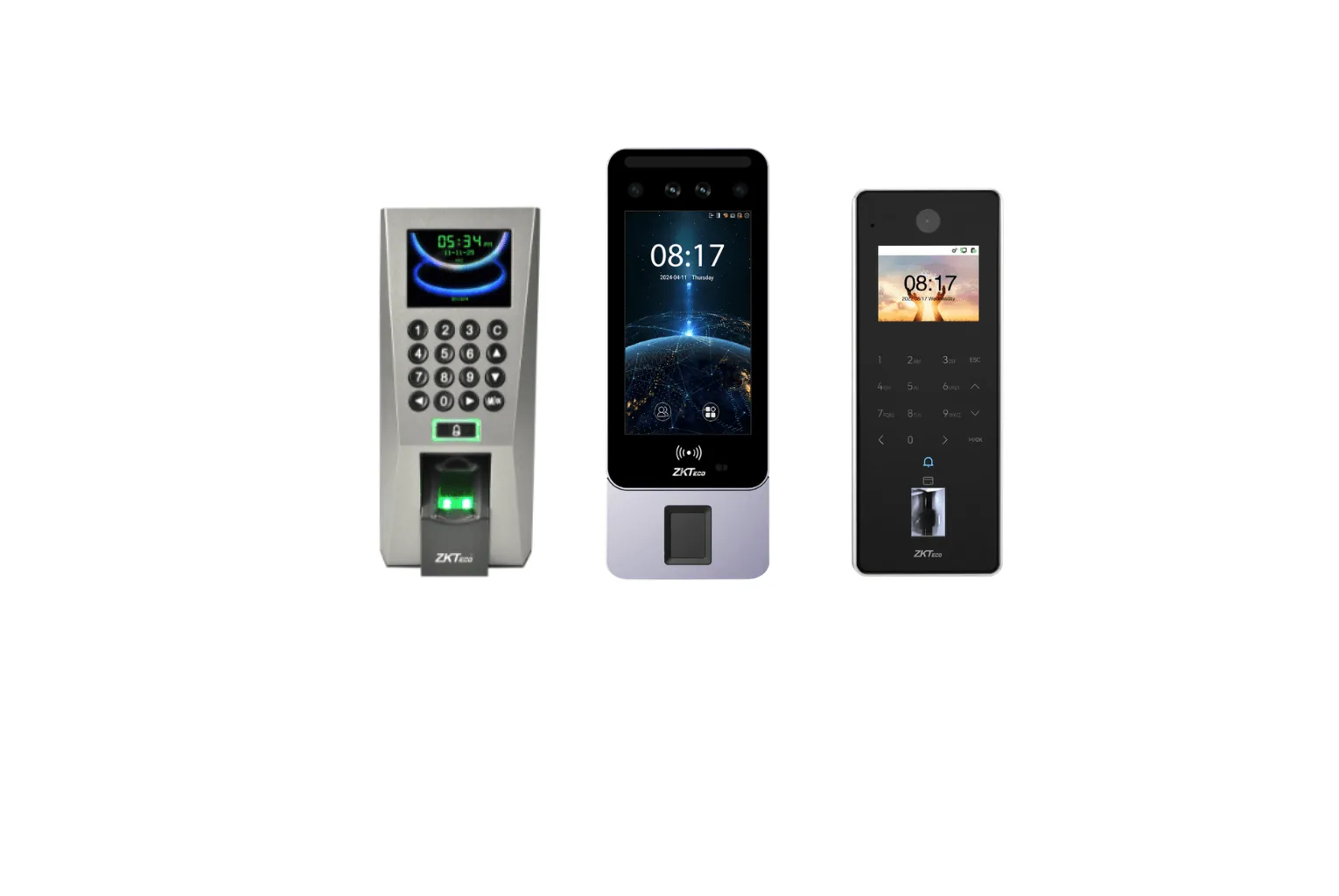
To enrol an employee on a ZKTeco terminal, create the user with their employee ID, then capture their face, fingerprints, palm or card at the device, following the on-screen guide. Enrolment quality decides how well the terminal recognises people later, so good lighting, correct finger placement and two fingers per person matter as much as the model you chose.
The steps below apply to most ZKTeco attendance and access terminals. Menu names differ between models and firmware (User Mgt., then New User, is common), and not every device supports every method.
Before you start
- Agree the employee ID. Use the payroll employee number on every terminal and in BioTime.
- Decide the administrators. Set two administrators and leave everyone else as normal users. Our admin lockout guide explains why.
- Tell staff in advance. Explain what is collected, why and how it is protected (see the privacy section below).
- Plan the queue. Allow a minute or two per person for a face and two fingers, and more for the first few while you get used to it.
Fingerprint enrolment
- Ask the person to wipe and dry their fingers. Very dry fingers, common in air-conditioned offices, can read poorly; rubbing the fingertips together briefly helps.
- Use the index or middle finger. Thumbs and little fingers are harder to place the same way every time.
- Place the finger flat in the centre of the sensor, covering as much of it as possible, with the core of the print in the middle. Do not use just the tip.
- Press gently and evenly. Too hard flattens the ridges; too light gives a partial image.
- Lift and replace the finger for each capture the device asks for, usually three, keeping the same position.
- Enrol a second finger on the other hand as a backup for cuts, plasters or injuries.
- Test straight away: the person should verify a few times before leaving.
Staff with worn fingerprints, such as construction workers, cleaners or mechanics, often read badly however carefully they enrol. For them, face, palm or card is more reliable. See face vs fingerprint attendance.
Face enrolment
- Enrol at the terminal where it is mounted, so the lighting matches daily use.
- Avoid strong backlight: a window or bright doorway behind the person makes the face too dark.
- Ask the person to stand at the distance shown on screen, look straight at the camera and keep their face inside the frame.
- Remove sunglasses, caps and masks during enrolment. Everyday glasses are usually fine.
- Headwear worn every day, such as a headscarf or ghutra, is fine as long as the face is clearly visible. Enrol people as they normally look.
- Keep a neutral expression and stay still until the device confirms.
- Test a few times, including from the direction people normally approach.
Palm, card and PIN
- Palm: on palm-capable terminals such as the SpeedFace V5L-P or ProFace X [P], hold the open hand flat with the fingers slightly apart, inside the frame at the distance shown, and keep it still.
- Card: hold the card on the reader area when prompted. Check the card type matches the terminal: many models read 125 kHz EM cards as standard and 13.56 MHz MIFARE cards only as an option.
- PIN or password: useful as a fallback, but it can be shared, so use it alongside a biometric or for visitors only.
On the device or from BioTime?
You can create users directly on the terminal, but for any company with payroll it is better to start in BioTime:
- Create departments and employees in BioTime, with the correct IDs and names.
- Send the employees to the terminal or terminals they will use.
- Capture the face, fingerprints or palm at the device against the existing user.
- Let the device upload the templates to BioTime, which can then share them with other compatible terminals.
This keeps one master list, avoids typing names on a small keypad, and means a compatible replacement terminal can be loaded from BioTime instead of re-enrolling everyone.
Bulk enrolment for large teams
- Import employees from a spreadsheet into BioTime instead of adding them one by one.
- Enrol by department or shift, with a supervisor and a printed list of IDs.
- Use more than one terminal during enrolment days, then sync the templates to the others.
- Check template compatibility. Templates move between terminals that use compatible algorithms. Moving to a different generation, such as from an older face terminal to a visible-light model, usually means enrolling faces again.
- Keep a list of exceptions: staff who could not enrol a usable fingerprint should get a face, palm or card instead.
Privacy and consent
Faces, fingerprints and palms are biometric data. Under the UAE Personal Data Protection Law (Federal Decree-Law No. 45 of 2021), biometric data is sensitive personal data, and companies in DIFC and ADGM follow their own data protection rules. In practice:
- Tell employees what you collect, why and who can see it, and record their acknowledgement or consent as your legal adviser recommends.
- Limit administrator access on devices and in BioTime to the people who need it.
- Delete an employee's biometric data from devices and software when they leave.
- Set a retention period for attendance records and keep to it.
Terminals typically store a mathematical template rather than an image of the fingerprint, although face terminals may also keep a photo for reference. Your legal adviser can confirm what applies to your organisation.
Need help enrolling a large team?
Our technicians set up BioTime, import your employee list and run enrolment days on site anywhere in the UAE, so terminals read reliably from day one. See our ZKTeco installation service, or ask for a quote with your headcount and number of devices.