
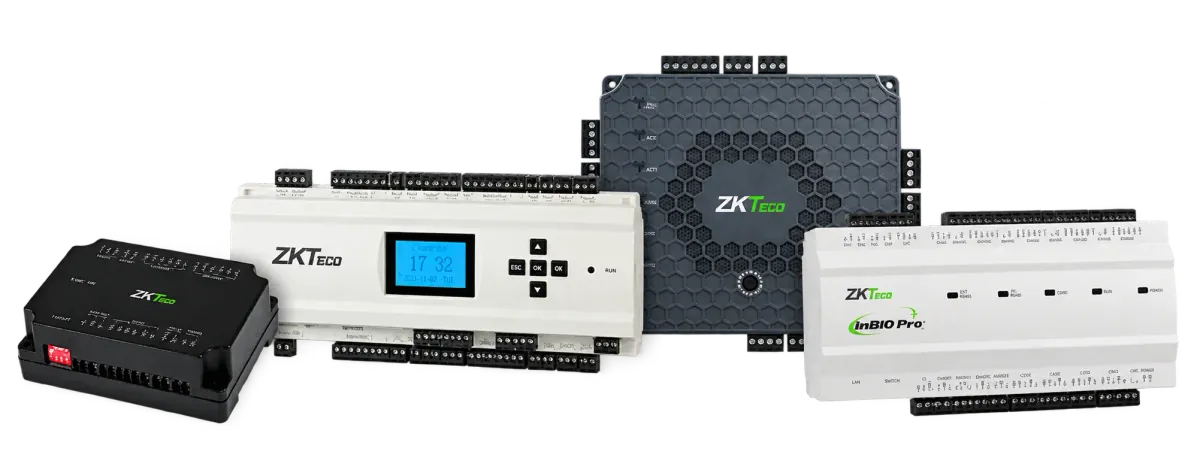
To set up ZKAccess 3.5, install it on a Windows PC on the same network as your ZKTeco C3 or InBio panel, add the panel, then configure doors, time zones, access levels and users, and synchronise everything to the panel. After that, the real-time monitoring screen shows door events and lets you open doors remotely.
Screens and options vary between ZKAccess builds and panel firmware. The steps below follow the usual order and assume the locks, exit buttons, door sensors and readers are already wired and tested by your installer.
Step 1: Install ZKAccess 3.5
- Choose a Windows PC that stays on, with a fixed IP address on the same network as the panels. ZKAccess 3.5 was built for older Windows versions, so check compatibility with yours first.
- Run the installer as administrator and follow the wizard.
- Choose the database: Microsoft Access suits small systems, and Microsoft SQL Server suits larger ones.
- Start ZKAccess, sign in with the default account documented in the installation guide, and change the password straight away.
- Add a second operator account so you are never locked out.
Step 2: Add the panel
- Connect the panel to the network with a cable. C3 and InBio panels support TCP/IP and RS-485.
- In ZKAccess, open the device section and use the search function to find panels on the network.
- If a panel's IP address is outside your network range, change it from the search results to a free address in your range.
- Add the panel. Set a communication password if your policy requires one, and record it.
- Give the panel a clear name, such as the building and floor.
ZKTeco panels come in one-, two- and four-door versions: the C3-100, C3-200 and C3-400 for card readers, and the InBio 160, InBio 260 and InBio 460, which also match fingerprints on the panel using FR series readers. Each lists 30,000 card holders and 100,000 log events in its specifications.
Step 3: Configure doors
Each panel's doors appear automatically. For each door, set:
- Name: something staff will recognise in reports, such as "Server room".
- Lock open time: how long the lock releases after a valid read.
- Door sensor type: normally open, normally closed or none, matching the installed sensor.
- Verification mode: card only, card plus PIN, or fingerprint on InBio panels, depending on the reader.
- Door alarms: door held open and forced open alerts, where a sensor is fitted.
Panels also offer advanced functions such as anti-passback, interlock and linkage, for example switching an output when an alarm input triggers. Doors on escape routes must release on a fire alarm signal: agree the fire alarm interface with your installer and fire consultant.
Step 4: Create time zones and holidays
A time zone in ZKAccess is a schedule: the hours of each day when access is allowed. Create the ones you need, for example:
- Office hours on your working days.
- Twenty-four hours, every day, for managers and security.
- Shift windows for operations staff.
- Limited hours for cleaners or contractors.
Add public holidays so that office-hours access does not apply on those days. Update them every year, including Eid holidays, whose dates are confirmed close to the time.
Step 5: Set up access levels
An access level combines a set of doors with a time zone, for example "All staff, main entrance, office hours" or "IT, server room, 24 hours". Keep levels few and clearly named. Staff get access by being added to one or more levels, which is far easier to manage than setting doors person by person.
Step 6: Add users and credentials
- Create departments that match your organisation.
- Add personnel with an ID and name, or import them from a spreadsheet.
- Issue cards by typing the card number, or by reading it with a USB desktop reader such as the CR20E (125 kHz) or CR20M (13.56 MHz), matching your card type.
- For InBio panels with fingerprint readers, enrol fingerprints with a supported USB fingerprint reader or at an FR series reader.
- Add each person to the right access levels.
- Synchronise all data to the panels.
Then test every door with a valid and an invalid credential, inside and outside its time zone.
Step 7: Monitor doors and run reports
The real-time monitoring screen shows the status of each door and every event as it happens: valid access, denied attempts, alarms and doors left open. Operators can open or close doors remotely from here. Reports list all events or exceptions only, filtered by date, door or person, and can be exported for investigations or management reports.
When to move to ZKBio CVSecurity
ZKAccess 3.5 is a practical tool for a single site with a few panels. Consider ZKBio CVSecurity when you need:
- Browser access for several operators, rather than one Windows PC.
- Several buildings or sites managed from one system.
- Visitor management, lift control, car park barriers or video linkage.
- Newer face recognition terminals. The SpeedFace V5L-P, for example, lists ZKBioSecurity, BioTime 8.5 and ZKBioAccess as its supported software, not ZKAccess.
- A current Windows server environment with ongoing updates.
Moving is a project: panel compatibility and firmware need checking, and users and levels need migrating. Our BioTime vs ZKBio CVSecurity comparison shows where each platform fits.
Need ZKAccess set up or migrated?
Our technicians install and configure C3 and InBio panels, ZKAccess 3.5 and ZKBio CVSecurity across the UAE, including door wiring checks and fire alarm release. See our installation service, our repair service for existing systems, or request a quote.