
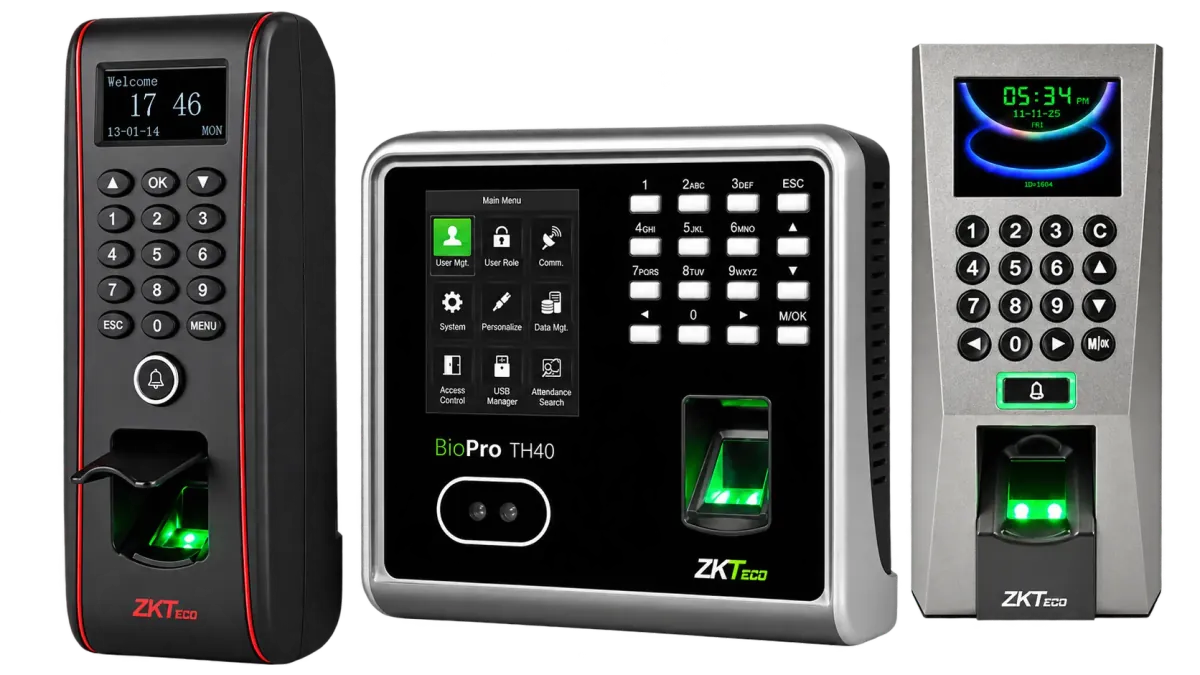
A ZKTeco terminal shows offline in BioTime when it cannot reach the server, usually because of a network setting, a wrong server address or port on the device, or a firewall on the server. Check those three first. The records are normally safe: the terminal stores them and uploads them once the connection is restored.
Work through the checks below in order. Menu names vary between models and firmware versions (Comm., Network or Communication, for example), so look for the closest match on your device.
First, narrow it down
- One terminal offline, others online: the problem is that device, its cable or its settings.
- All terminals offline at once: look at the server, its IP address, its firewall or the BioTime services.
- Only terminals at another branch: check that site's internet connection and the port forwarding or VPN at head office.
- Online, but no new records in reports: check the date and time on the device and the area it is assigned to in BioTime.
Step 1: Check power, cable or Wi-Fi
- Confirm the terminal is powered and not restarting. Repeated restarts often point to a failing power adapter.
- For a wired connection, check the network cable at both ends and the link light on the switch port. Try a known-good cable and a different port.
- For Wi-Fi, check the signal on the device. Walls, metal and distance from the access point weaken it. A cable is more reliable for a fixed terminal.
Step 2: Check the IP address, subnet and gateway
On the terminal, open the network settings (often Comm., then Ethernet) and check:
- IP address: it must be in the same range as your network and not used by another device. An address conflict makes devices drop off at random.
- Subnet mask: it must match the rest of the network.
- Gateway: it must be your router's address. Without it, the terminal can reach devices on the same network but not a server elsewhere or on the internet.
- DNS: this only matters if the server address is a domain name. Enter a working DNS server.
- DHCP: if the terminal gets its address automatically, it may change after a power cut. A fixed address or a DHCP reservation is easier to manage.
From the BioTime server, ping the terminal's IP address from a command prompt. If it does not reply, the problem is on the network, not in BioTime. Some networks block ping, so a failed ping is a clue rather than proof.
Step 3: Check the server address and port on the device
BioTime terminals use push communication (ADMS): the device contacts the server. Open the cloud server settings (often Comm., then Cloud Server Setting) and check:
- Server address: the IP address of the BioTime server, or its domain name if you use one. Never 127.0.0.1 or localhost, which point to the terminal itself.
- Server port: the port BioTime was installed with, shown in the BioTime service or server settings.
- Domain name option: enable it only if you entered a domain name, and make sure DNS is set.
- Proxy: leave it off unless your IT team uses a proxy server.
After saving, many terminals show a small server or cloud icon when connected. Allow a minute or two before checking BioTime.
Step 4: Check the BioTime server and firewall
- Services: confirm the BioTime services are running in Windows Services. Restart them, or the server, if needed.
- Server IP address: check whether it has changed (run ipconfig in a command prompt). If it has, set a static address or DHCP reservation and update the terminals.
- Windows Firewall: allow incoming connections on the BioTime port. Updates and new security software sometimes change the rules.
- Security software: some antivirus and endpoint products block unknown services. Add an exception for BioTime if your IT policy allows it.
- Licence: if your licence covers a set number of devices, an extra terminal may not be accepted. Check the licence status in BioTime.
- Remote branches: devices outside the office reach the server through your router. Check the port forwarding or VPN; our ADMS and cloud server guide explains the setup.
Step 5: Check the time zone and date
A wrong date or time zone rarely stops the connection, but it makes records look missing: punches are saved with the wrong date and fall outside the report period. Check the date, time and time zone on the terminal and in the BioTime device settings, and correct them before the next payroll cut-off. Terminals in different countries each need their own time zone.
Step 6: Firmware and compatibility
BioTime needs terminals with push firmware that suits the BioTime version. A device moved from other software, or bought for a different system, may run firmware that does not talk to BioTime at all. Note the firmware version from the device information screen and send it to your supplier with the model and serial number. Do not load firmware files from unofficial sources: the wrong file can leave a terminal unusable.
When to call a technician
- The terminal will not power on, keeps restarting or shows a hardware error.
- Network checks pass but the device still does not appear in BioTime.
- Several sites or VPNs are involved and you do not manage the network yourself.
- A firmware change is needed.
- Records may be missing from a payroll period and need to be recovered from the device.
Get your terminals back online
Our technicians troubleshoot ZKTeco terminals and BioTime servers on site and remotely across the UAE. Book our ZKTeco repair service, or keep systems checked and maintained with an annual maintenance contract. Call +971 50 350 1406 or request a quote.