
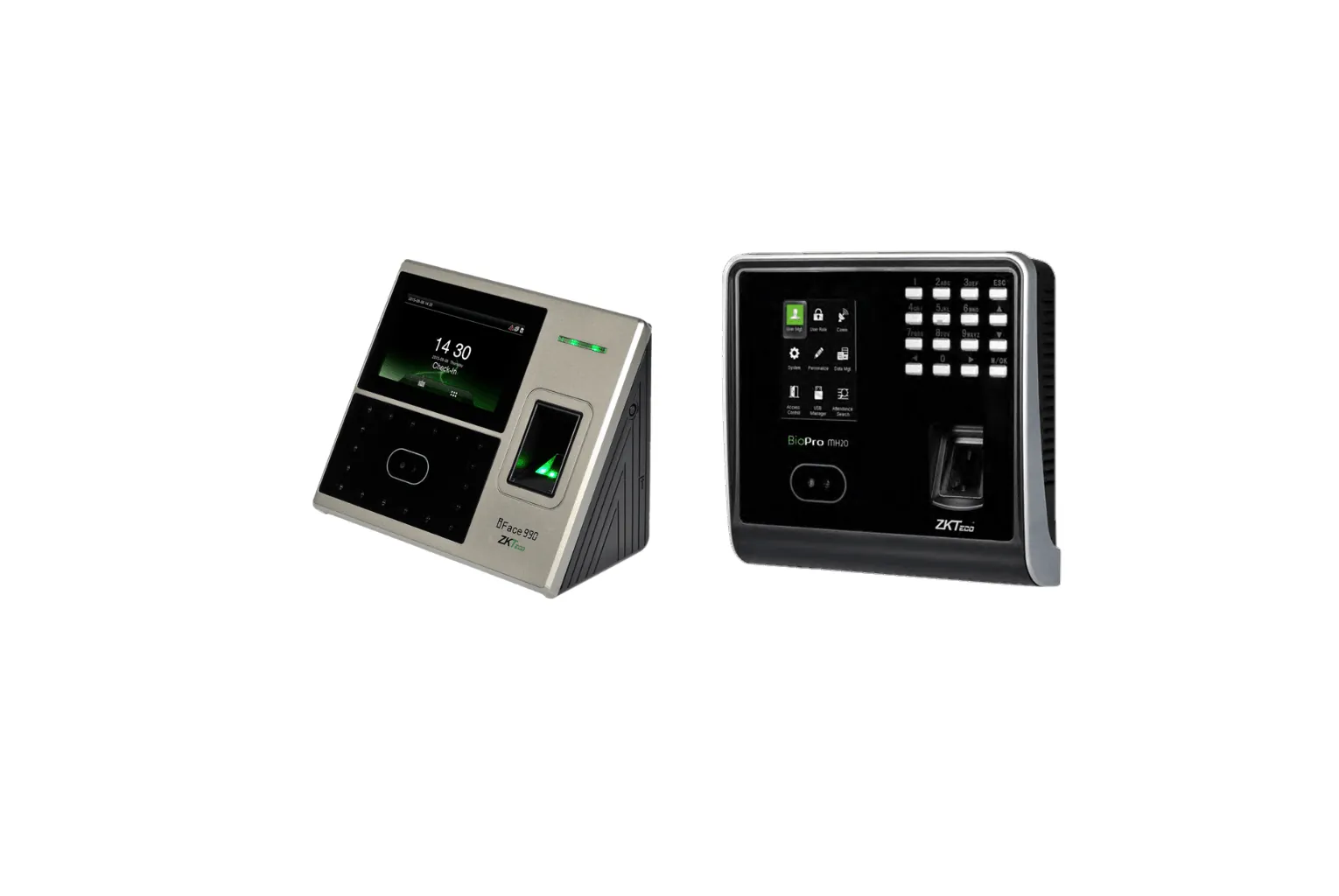
You can export ZKTeco attendance to Excel in two ways: download the raw punches from the terminal to a USB flash drive and open the file in Excel, or run a report in BioTime and export it in Excel format. USB suits a single standalone device; BioTime is better for any company that pays from the data, because it calculates hours, lateness and overtime for you.
Steps and menu names below vary between models, firmware and BioTime versions, so look for the nearest match on your screen.
Option 1: USB download from the terminal
Many ZKTeco attendance terminals have a USB host port for a flash drive. A typical download looks like this:
- Use a USB flash drive formatted as FAT32, ideally an empty one. Some terminals do not read other formats.
- Insert the drive into the terminal's USB port.
- Sign in to the menu as an administrator and open the USB menu (often USB Manager, then Download).
- Choose the attendance data, sometimes called attendance logs or records. User data can usually be downloaded separately.
- Wait for the success message before removing the drive.
- On your PC, open Excel, choose Data, then From Text/CSV, select the file and pick the separator (usually tab) so each value lands in its own column.
The file contains raw punches: one row per clock-in or clock-out. It does not calculate hours or know your shifts. For a handful of employees that may be enough; beyond that, the manual work grows quickly. If you cannot get into the admin menu, see our admin lockout guide.
Option 2: Export a report from BioTime
With terminals connected to BioTime, punches arrive automatically and BioTime applies your shifts, breaks, overtime rules and leave. To export:
- Open the attendance reports section in BioTime.
- Choose a report. Transaction reports list every punch; daily and monthly reports show calculated hours, absences, lateness and overtime.
- Filter by date range, department, area or employee.
- Click Export and choose the format. Excel is available for most reports; CSV, PDF or text may also be offered, depending on the version.
- Open the file in Excel and save a working copy.
If you change shifts or approve corrections for a past period, make sure attendance is recalculated (your version may have a manual calculate option) before you export for payroll.
Typical columns in the export
| Column | USB download | BioTime report | Notes |
|---|---|---|---|
| Employee ID | Yes | Yes | The key for matching to payroll |
| Name and department | Usually not | Yes | USB attendance files often carry the ID only |
| Date and time of each punch | Yes | Yes, in transaction reports | Check the date format after import |
| Punch state (check-in, check-out, break) | Often | Yes | Depends on how the terminal is set up |
| Verification type | Often | Yes | Fingerprint, face, card or password |
| Device or area | Implied by the device | Yes | Useful when you have several terminals |
| Worked hours, lateness, overtime | No | Yes, in daily and monthly reports | Calculated from your shift rules |
Cleaning the data for payroll
- Keep employee IDs as text. Excel turns an ID such as 00123 into 123. Import the ID column as text, or format it before pasting.
- Check the date format. Make sure dates read as day/month/year and that Excel treats them as dates, not text.
- Remove duplicate punches. Staff sometimes clock in twice within a minute. Keep the first and last punch of the day unless your policy says otherwise.
- Find missing punches. A day with a clock-in but no clock-out needs a correction approved by the manager, not a guess.
- Watch night shifts. A shift that crosses midnight spans two dates. BioTime handles this through its shift settings; in a raw file you must pair the punches yourself.
- Match payroll IDs. Use the same employee number on the terminals, in BioTime and in payroll.
- Keep the original file. Work on a copy, so you can always return to the raw data.
For a full walkthrough of moving BioTime data into SAP, TallyPrime or Zoho, read our attendance and payroll integration guide.
Which method should you use?
A USB download suits a single standalone terminal and a very small team. Once you have shifts, overtime or more than one device, BioTime saves time every month and reduces errors, and it keeps a full history if a terminal fails. Network terminals such as the UA300 Pro or SpeedFace V5L-P send records to the software automatically.
Want the reports set up for you?
Our technicians connect terminals to BioTime, set up shifts and overtime rules, and build the export your payroll team needs, anywhere in the UAE. See our installation service, or our maintenance contracts for ongoing support. Request a quote with your number of employees and devices.