
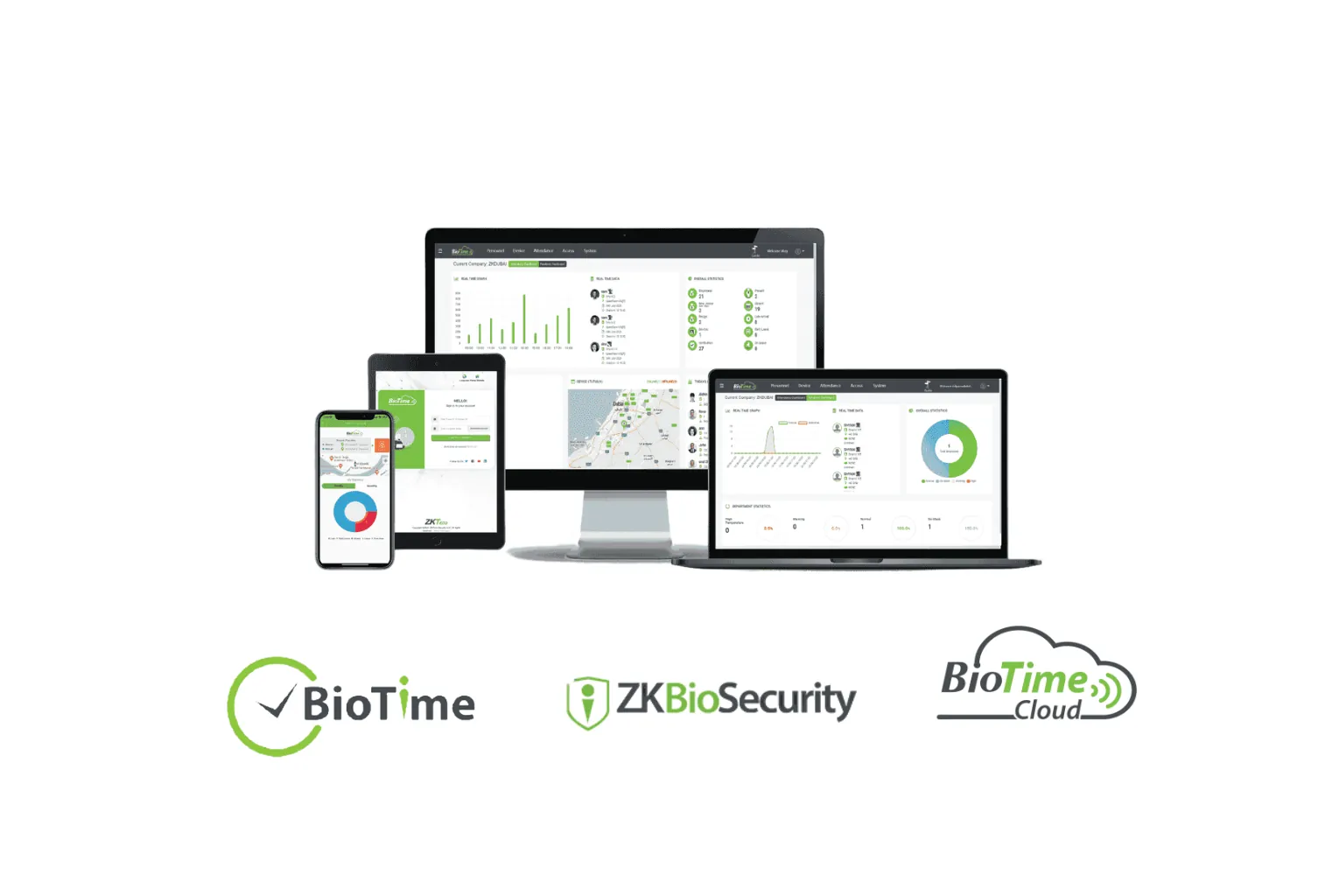
To connect ZKTeco devices to BioTime over the internet, make the BioTime server reachable at a fixed public address and port, then enter that address and port in each terminal's cloud server (ADMS) settings. Each terminal then pushes punches to the server as they happen. If you would rather not run a server, BioTime Cloud does the same job as a hosted service.
This guide covers what ADMS is, the ways to host the server, port forwarding, device settings and security. Options vary between BioTime versions and device firmware, so use it as a guide and confirm details for your setup.
What is ADMS?
ADMS is ZKTeco's push protocol. Instead of the software polling each device, the terminal opens the connection to the server, sends new punches and user changes, and collects any commands waiting for it. Because the connection starts from the device, branch routers usually need no special setup: only the server has to be reachable. Terminals that list ADMS in their specifications, such as the UA300 Pro, the SpeedFace V5L-P and the portable S922, work this way.
Three ways to host the server
| Option | What you need | Suits | Watch out for |
|---|---|---|---|
| Server at head office | BioTime on an always-on PC or server, a static public IP and port forwarding on the router | Companies with IT support and a reliable office connection | If the office connection fails, branches cannot upload until it returns (records wait on the devices) |
| Rented cloud server | BioTime installed on a hosted Windows server with a public IP | Multi-site groups without a server room | You still manage Windows updates, backups and security |
| BioTime Cloud | A BioTime Cloud account and internet at each site | Companies that want no server at all | Confirm device compatibility and any data location requirements first |
Static public IP, domain name and port forwarding
For a server at head office, three things must be in place:
- A static public IP address. Ask your internet provider. Some connections share one public address between many customers, which makes port forwarding impossible; a business line with a static IP avoids this.
- Port forwarding. On the office router, forward the BioTime port from the public IP to the server's fixed internal IP address. Forward only that port.
- A firewall rule. Allow incoming connections on the same port in Windows Firewall on the server.
A domain name makes life easier. Point a subdomain, such as attendance.yourcompany.ae, at the public IP and use it on the devices. If the IP address ever changes, you update one DNS record instead of every terminal. Devices that use a domain name need a working DNS server in their network settings.
Test from outside the office: on a phone using mobile data, open the address and port in a browser. If the BioTime web interface uses the same port, as it does in many installations, the login page should appear. If nothing loads, check the forwarding and firewall before touching the devices.
Device settings
- Confirm the terminal has internet access: the correct IP address, subnet mask, gateway and DNS for the branch network, or a working Wi-Fi or mobile data connection on models that support it.
- Open the cloud server settings (often Comm., then Cloud Server Setting).
- Enable the domain name option if you use one, and enter the domain or the public IP address.
- Enter the port BioTime was installed with (shown in the BioTime server or service settings), which is the port you forwarded on the router.
- Save. When connected, the device usually shows a server or cloud icon, and it appears in the BioTime device list with its serial number.
- In BioTime, assign the device to the right area, and set its time zone if the branch is in another country.
If a device will not connect, work through our device offline checklist.
Security: what to get right
- Open one port only. Never expose the database, remote desktop or file sharing to the internet.
- Restrict sources where possible. If your branches have static IP addresses, allow only those through the firewall.
- Consider a VPN. A site-to-site VPN between branches and head office keeps device traffic off the public internet; terminals then use the server's private IP address.
- Protect the login page. If the web interface is reachable from outside, use strong, unique passwords and keep administrator accounts to a minimum.
- Use encrypted communication where supported. Some BioTime versions and device firmware support HTTPS; ask us what yours supports.
- Keep it updated and backed up. Apply Windows and BioTime updates and back up the database on a schedule.
The alternative: BioTime Cloud
BioTime Cloud is the hosted version of BioTime. Terminals at every site push to the cloud service, and HR works in a browser or the ZKBioTime mobile app. There is no server to buy, no static IP and no port forwarding. It suits companies with several branches, remote sites or no in-house IT. Check that your terminals are compatible and that a hosted service meets your data requirements before you switch.
Want it set up for you?
Our technicians set up BioTime servers, port forwarding, VPN links and BioTime Cloud for multi-branch companies across the UAE, and connect every terminal. See our installation service or maintenance contracts, and request a quote with your number of sites and devices.