
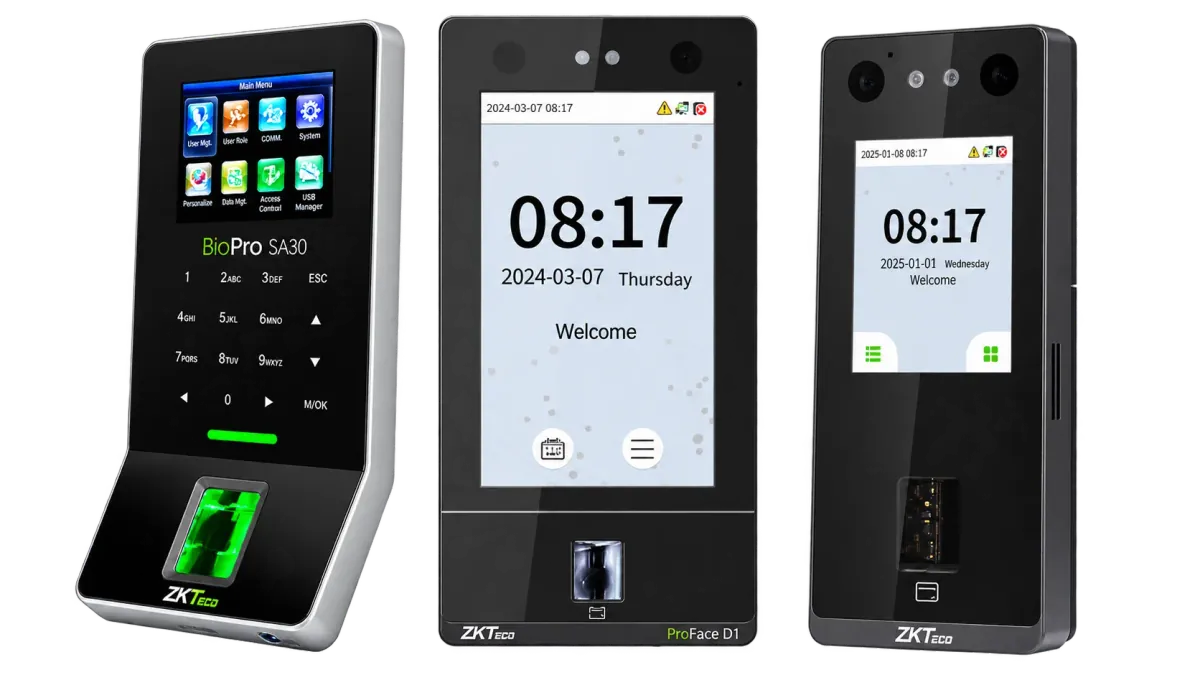
If you are locked out of a ZKTeco terminal's admin menu, contact the supplier who sold it, with the device serial number and your proof of purchase. The supplier confirms ownership and works with ZKTeco support on an authorised unlock, so you regain control without losing attendance data or damaging the device.
This guide explains why lockouts happen, what to avoid and how to prevent it. For security reasons we do not publish master codes or bypass methods: anyone with such a method could open any customer's device.
Why admin lockouts happen
A ZKTeco terminal protects its menu once at least one user is set as administrator (often called super admin). From then on, only an administrator can change settings, add users or download data. Lockouts happen when that administrator is no longer available:
- The only administrator has left the company, often without a handover.
- The administrator was enrolled with a password only, and nobody remembers it.
- The administrator's fingerprint no longer reads, for example after a cut, or their face was enrolled long ago.
- An installer set an administrator during installation and did not document it.
- Someone made themselves administrator by mistake while enrolling.
What not to do
- Do not open the device or change its wiring. It can damage the board, trigger the tamper alarm on models that have one, and affect the warranty.
- Do not load firmware from unofficial sources. The wrong file can make the terminal unusable.
- Do not pay for master codes or unlock tools sold online. They are not authorised, may not suit your model or firmware, and some are scams.
- Do not reset the device in a hurry. Some resets erase users and records that have not yet reached your software. Let your supplier decide the safe procedure.
- Do not assume payroll data is complete. If you cannot download records, check that punches are still reaching BioTime.
The legitimate route: through your supplier
- Find the serial number. It is on the label on the device, usually on the back or underneath, and in the BioTime device list if the terminal is connected.
- Find your proof of purchase. An invoice or delivery note from the supplier, ideally showing the model and serial number.
- Contact your supplier. Send the model, serial number, photos of the device and label, the invoice and a short description of what happened.
- Ownership is verified. The supplier checks the details and, where needed, raises the case with ZKTeco support.
- Authorised unlock. The supplier guides you through the approved procedure for your model and firmware, or a technician does it on site or in the workshop.
- Set new administrators. Enrol two administrators straight away and record who they are.
If you bought the device from another company, contact them first: they hold your purchase record. If that is not possible, talk to us and we will tell you honestly what can be done with the documents you have. Keep the invoice with your device records: it makes this process much simpler. See our warranty information.
If the device is still connected to BioTime
A terminal that is still online in BioTime keeps sending punches, so your attendance data is safe while the menu is locked. Mention this when you contact your supplier. Depending on the software version and device firmware, some administration can be done from the software you already own, which can make the fix quicker. If the device is offline as well, read our offline troubleshooting guide so records are not put at risk.
How to stop it happening again
- Two administrators per device: for example the HR manager and the IT or facilities lead, never a single person.
- More than one verification method: enrol each administrator with a fingerprint or face and a password or card, so one failure does not lock you out.
- Keep a record: list the administrators and serial number of each device in your IT documentation. Keep any passwords in a password manager, not on a sticker.
- Handover when staff leave: add replacing device administrators to your leaver checklist.
- Back up: keep terminals connected to BioTime and back up the BioTime database regularly. For standalone devices, download users and records to USB on a schedule.
- Normal users for everyone else: only administrators should have menu access.
An annual maintenance contract can include a periodic check of administrators and backups on every device. Our enrolment guide covers setting up administrators correctly from the start.
Need help regaining access?
Send us the model, serial number and your proof of purchase, and our technicians will advise on the next step for your device. We support ZKTeco terminals across the UAE through our repair service. Call +971 50 350 1406 or contact us online.